2026
GoodSync for Business
A conceptual redesign of GoodSync's enterprise backup platform focused on scalable operations, multi-tenant management, and safer operational workflows.
Senior Product Designer
Enterprise / B2B SaaS / Admin Tools / Infrastructure / Operational UX / Cross-platform
- Scalable backup operations for SMBs and MSPs
- SMB + MSP Dual operational models
- Cross-platform Windows, macOS, Linux, NAS

GoodSync is a backup and synchronization platform used by both individual users and IT teams.
As the product expanded across SMB and MSP environments, operational complexity became increasingly difficult to manage at scale.
The project explored how backup operations, multi-tenant workflows, rollback systems, and reporting could evolve into a more scalable operational platform.
Designing for Scale
Traditional backup systems often become harder to manage as organizations grow.
The redesign introduced a layered operational model built around reusable templates, centralized propagation, and device collections.
Instead of configuring jobs individually, administrators could define reusable structures applied automatically across device fleets.
The platform architecture was reorganized into four connected layers:
Policies
Top-level intent — what should be backed up, where, and under what conditions.
Templates
Reusable configurations derived from policies, applied across device groups.
Device Collections
Groups of devices defined by rules, receiving templates automatically.
Jobs
Individual backup operations generated and managed through the layers above.

Legacy Job Management
The existing model required administrators to configure and update each job individually, making fleet-wide changes increasingly expensive as device counts grew.

Policies → Templates → Collections → Jobs
The redesigned architecture separates operational intent from job execution. Changes made at the policy or template level propagate automatically to all affected device collections.

Scaling Comparison
Managing 10 devices versus 500 devices should not require 50× more configuration work. The new model keeps operational surface area constant as fleet size increases.

Propagation Model
A single template change propagates to all associated collections simultaneously, eliminating the need to edit individual jobs across large device fleets.


Templates List
A scannable library of reusable backup configurations — each template shows its type, scope, active jobs, and health status at a glance.


Template Details
Full template view showing health, active issues, configuration, and the collections it is applied to — all in one place with direct actions.


Device Collections
Collections group devices by type — Dynamic collections update automatically via rules, Static collections are managed manually. Each shows device count, applied templates, and health.


Collection Detail
A collection detail shows which templates are applied, current health across all member devices, and the membership rule that defines which devices belong.


Rule Builder
A structured rule editor for defining collection membership. Conditions combine tag, attribute, and type filters — new devices matching the rule are included automatically.


Apply to Collection
Applying a template shows a live preview — jobs to create, licensing gaps, policy conflicts, and what happens when devices come online — before any changes are committed.
Operational Visibility
As the platform scaled, operational visibility became as important as configuration management.
The interface prioritized high-value signals over dashboard density: system health, blocked operations, failed jobs, and actions requiring attention.
Health states were simplified into clear operational categories: Healthy, Warning, and Critical.


Healthy State
When all jobs are running as expected, the dashboard surfaces what is working and when the next scheduled runs are due — without surfacing noise.


Warning & Critical Signals
Client dashboards surface operational warnings and critical failures in context, showing the affected scope and providing direct paths to the next action.


Issues Alerts
An actionable issues panel surfaces blocked jobs, unprotected endpoints, and licensing problems with enough context to act without leaving the dashboard.


Reports Dashboard
An overview of backup coverage, job success rates, storage consumption, and operational trends across the full device fleet.


Activity Log
A structured audit trail of all backup events, configuration changes, and system actions — filterable by device, job, user, or time range.


Job Monitoring
Real-time job status across the fleet with health signals, last run time, next scheduled run, and quick access to individual job history.


Device Health
Per-device backup health showing coverage, last successful backup, storage usage, and any active warnings or failures.


Failure Breakdown
A structured failure analysis view grouping job failures by root cause category, affected devices, and recommended resolution paths.
Designing Safe Operational UX
Backup and synchronization systems operate on potentially destructive actions: overwriting files, deleting data, propagating changes, and restoring previous states.
The redesign introduced tiered confirmation patterns based on operational risk.
Rollback workflows became a central part of the exploration, supporting recovery, undo operations, and selective restoration flows.
The goal was reducing uncertainty during high-risk actions without slowing down experienced administrators.


Job Run Details
Each completed job run shows whether a rollback is available, how long it remains accessible, and a direct entry point to start the rollback wizard.


Mode Selection
Administrators choose between undoing a single run, restoring to a state before a specific run, or selectively recovering individual files — each mode shows its scope and risk level before proceeding.


Impact Preview
Before committing, the interface shows exactly what will happen — files to restore, files that cannot be recovered, scope limitations, warnings, and estimated time.


Confirm Rollback
A final confirmation screen summarises all rollback parameters. To proceed, administrators type the run number they are rolling back to — preventing accidental execution.


Rollback in Progress
Live progress showing files restored per second, overall completion, and individual file status. The job is paused during rollback and resumes automatically on completion.


Rollback Complete
A summary of what was restored, what could not be recovered, and when the next scheduled run will resume — with a direct link to the full rollback details.


Propagation Warnings
Editing a shared template flags destructive changes before saving — showing exactly what will change, which devices are affected, and what happens to existing jobs.


Delete Impact Preview
Deleting a template shows the full downstream impact — jobs removed, collections losing protection, history becoming orphaned — and requires typing the template name to confirm.


Typed Acknowledgment
Deleting a collection requires typing the exact collection name to proceed. The confirmation screen lists every consequence, making the scope of the action impossible to miss.


Blocked Operations
When a template's destination becomes unreachable, applying it to new collections is disabled. The interface explains the failure, surfaces recovery actions, and keeps existing jobs visible.


Pre-flight Checks
Applying a template to a collection triggers pre-flight validation — surfacing policy violations and licensing gaps that must be resolved before jobs are created.


Run History
A detailed timeline of all job runs — showing file counts, transfer sizes, duration, exit status, and inline error context for every run on the device.


File Changes
A per-run file-level breakdown of every action taken — updates, copies, deletions — with source and destination sizes, dates, and searchable filename filtering.


Restore Preview
Before any restoration begins, the interface shows exactly which files will be recovered, which cannot be fully restored, and what the scope and scheduling impact will be.


Audit Trail
A complete log of all configuration changes, job actions, and user-initiated operations across the MSP portal — filterable by actor, action type, and client.


Logs
Structured job logs with searchable entries, log-level filtering, and the ability to download or copy for external review or support escalation.
Multi-tenant Operations
The platform supported two operational environments:
- SMB teams managing a single organization
- MSP operators managing multiple client organizations simultaneously
Instead of forcing both audiences into the same interface model, the redesign separated operational contexts while preserving a shared system architecture.
The MSP layer introduced client switching, fleet-wide monitoring, shared licensing, and cross-client reporting.


MSP Dashboard
A fleet-wide view across all managed clients — showing overall health, active alerts, license utilization, and clients requiring immediate attention.


Client Switcher
A persistent switcher for moving between client contexts without losing the current operational view — each client isolated with its own data and configuration.


Fleet Health
Cross-client fleet health aggregated into a scannable overview — devices grouped by status across all managed organizations.


Jobs Monitor
A unified jobs view spanning all client environments, with filtering by client, status, and job type for fast cross-tenant triage.


License Pools
The MSP license pool shows total capacity, allocation per tier, and per-client usage — with inline editing and status indicators flagging clients near their limit.


Allocation Management
Adjust license allocations per client, set soft limits, and see the downstream impact on job coverage and protected endpoints before committing.

Client Reporting
Per-client performance reports covering job success rates, data protected, and incidents — exportable as a QBR-ready PDF or CSV for client review cycles.

Team Management
Manage operator accounts across the MSP organization with role assignments, client access scopes, and activity history per operator.
Roles & Permissions
Configurable role definitions with granular permission controls — separating read-only monitoring access from configuration and destructive operation rights.


Scoped Operators
Operators can be scoped to specific client organizations — limiting their visibility and action rights to only the clients they manage.

Visibility Restrictions
Client-level visibility restrictions prevent operators from accessing configuration, billing, or reporting data outside their authorized scope.
Storage & File Experience
The project also explored a browser-based file management experience with previews, drag-and-drop, keyboard navigation, responsive layouts, and multiple viewing modes.
Unlike static mockups, the prototype was implemented as a fully interactive React application with responsive behavior and real media previews.
The goal was making backup workflows feel more approachable without sacrificing power-user functionality.


Grid View
A visual grid layout for image-heavy directories — thumbnails rendered from file contents with folder structure visible in the sidebar.


List View
A compact list layout for quick navigation — files and folders displayed with type icons and sortable columns.


Table View
A dense table layout with full metadata columns — name, date modified, type, and size — optimized for large directories with mixed file types.


File Details
Selecting a file opens an inline details panel with full metadata — location, size, and timestamps — without leaving the current directory.

Image Preview
In-browser image preview with zoom, pan, and the ability to compare against another snapshot version without downloading.

PDF Preview
Paginated PDF preview rendered directly in the browser — with thumbnail navigation, search, and single-page download.

Video Preview
Inline video playback from backup storage with scrubbing, volume control, and fullscreen support.

Markdown Preview
Rendered markdown preview with syntax highlighting, togglable raw source view, and version diff mode.

Code Preview
Syntax-highlighted code preview for common file types — with line numbers, copy-to-clipboard, and version comparison mode.


Mobile Selection Mode
A touch-optimized multi-select mode for mobile — long-press to enter selection mode, tap to add items, with a persistent action bar for bulk operations.


Contextual Toolbar
A context-sensitive toolbar that surfaces relevant actions based on the current selection — adapting between single-file, multi-file, and folder contexts.
Extending the Ecosystem
The work expanded into onboarding, positioning, deployment guidance, and public-facing information architecture.
The redesign introduced clearer separation between business and consumer audiences while maintaining a unified product identity.
 Features duplicates PersonalOne CTA: DownloadHeadline names the category
 Audience self-selects from the first screen
Before / After: Homepage
A redesigned homepage that leads with outcomes rather than features — separating the business and personal audience journeys from the first screen.
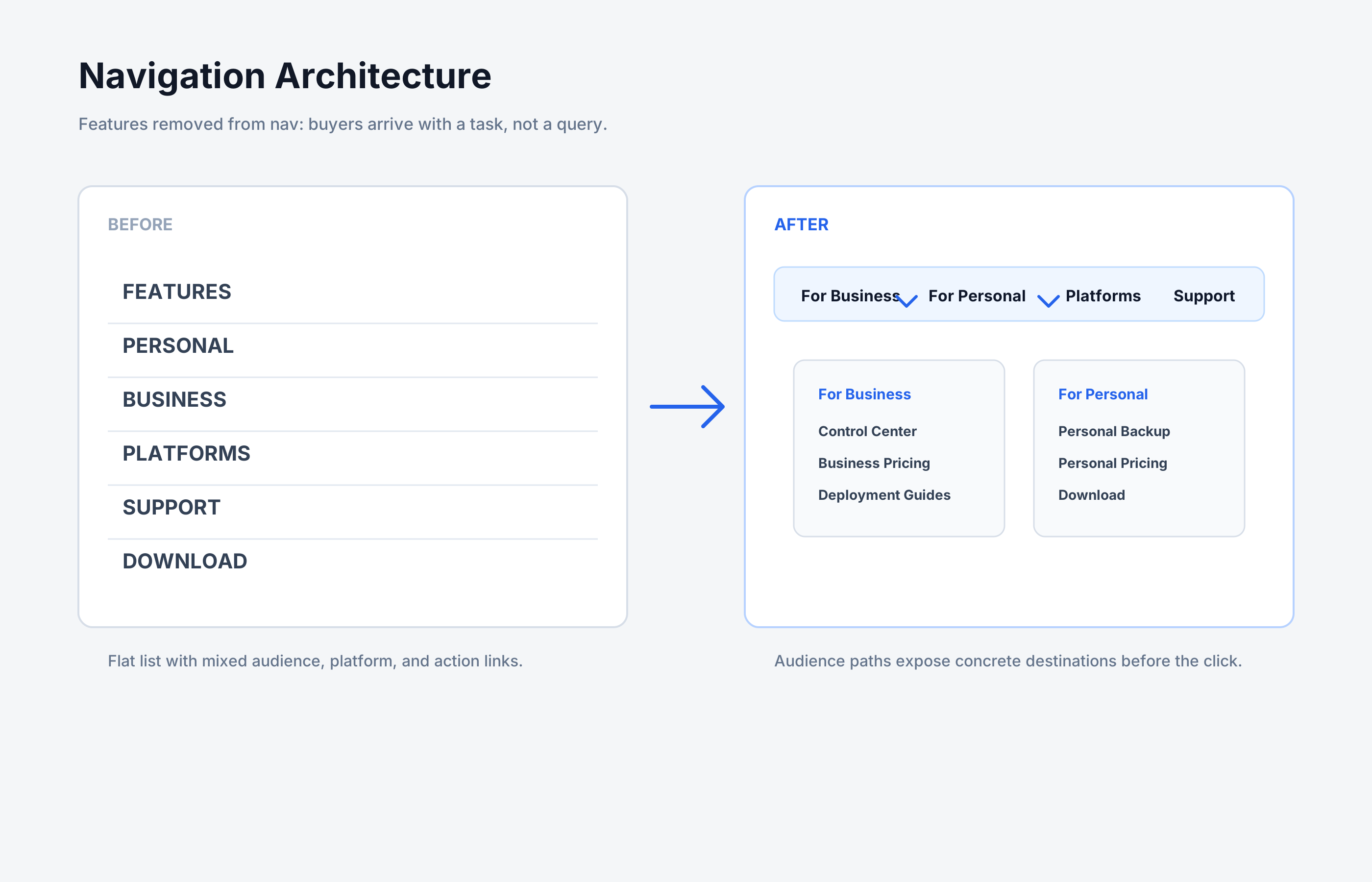
Navigation Architecture
The Features item was removed from the primary nav: the new structure separates business and personal dropdowns so buyers arrive through tasks and audience intent.
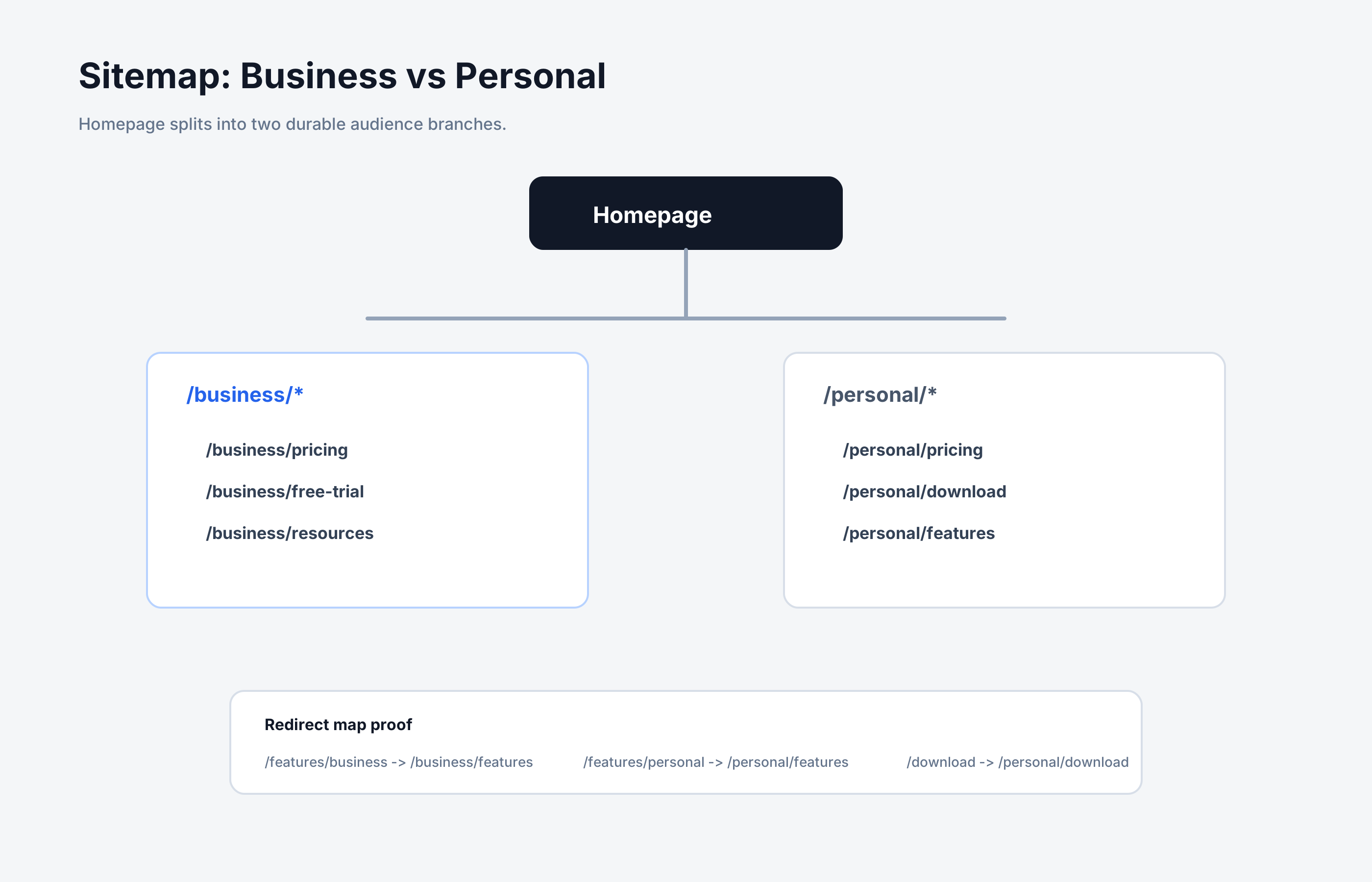
Sitemap: Business vs Personal
The homepage branches into dedicated /business/* and /personal/* paths, each with its own pricing, trial or download flow, resources, and feature pages.
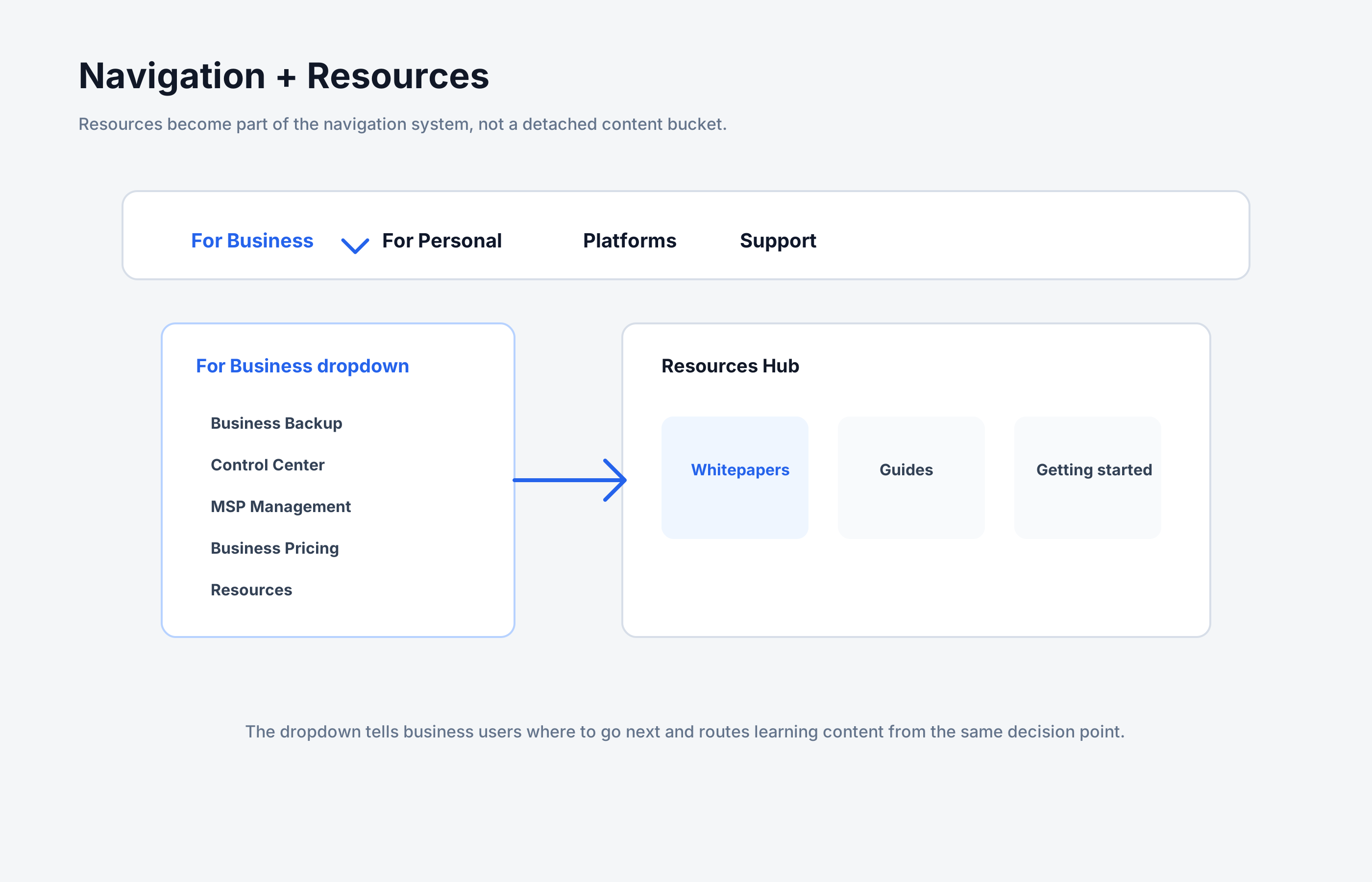
Navigation + Resources
The For Business dropdown and Resources Hub work as one system, routing IT buyers toward whitepapers, guides, and getting-started content from the nav.
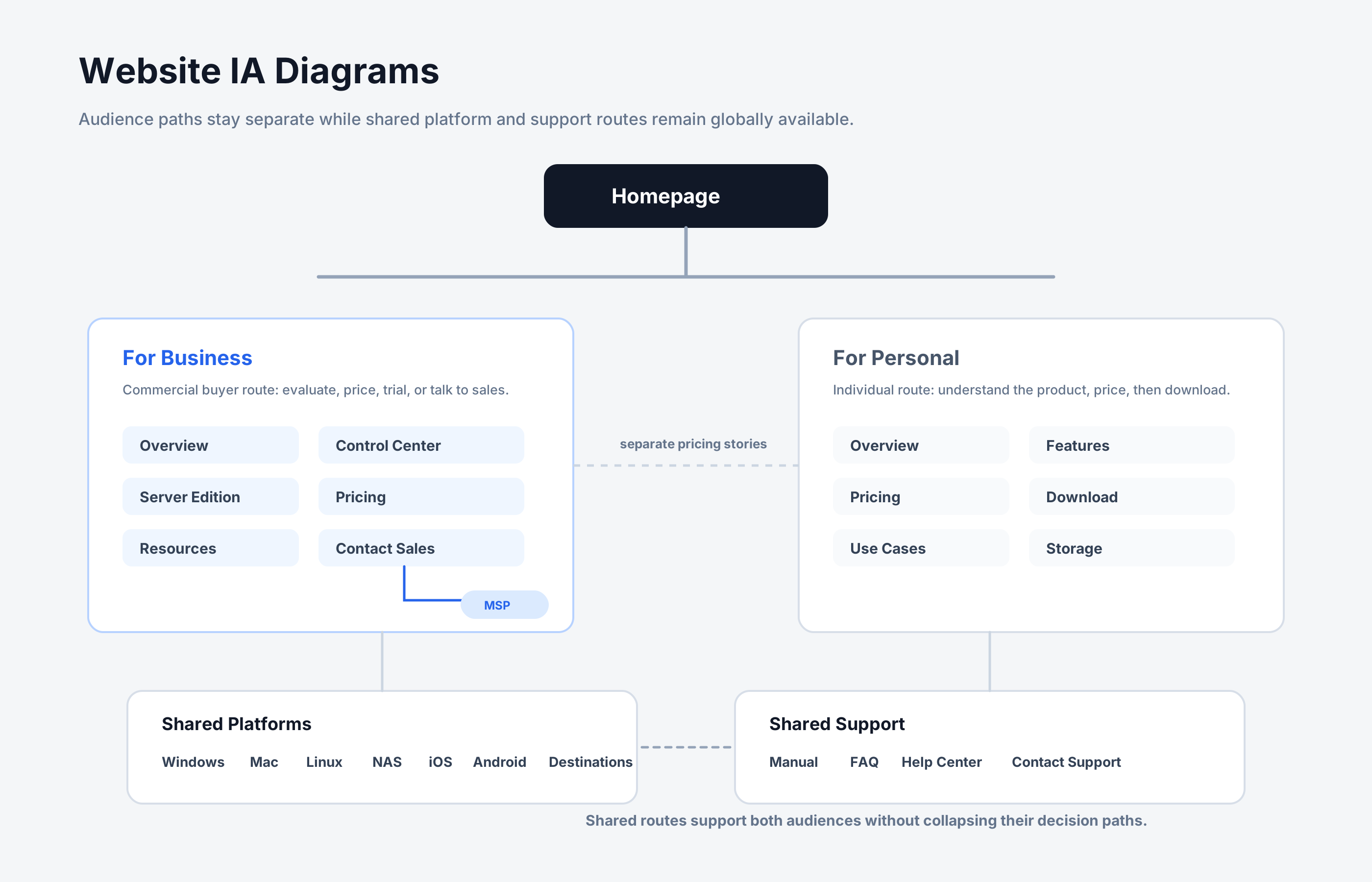
Website IA Diagrams
Information architecture diagrams mapping audience separation, business and personal page trees, and shared platform/support routes across the site.

Control Center Landing
A dedicated Control Center page that explains the web-based management hub and routes business users toward trial or sales conversations.

Pricing Page
A business pricing page organized around Workstation and Server licenses, with volume tiers, a license calculator, and clearer trial/contact paths.

Platforms Overview
A platform overview that makes supported operating systems, NAS/server coverage, mobile apps, and storage destinations visible from one place.

Support Overview
A support landing page that separates self-serve documentation, FAQ, and help center paths before escalating users to direct support.
Results
Outcome
Although conceptual, the project became a large-scale exploration of scalable backup operations for SMB and MSP environments.
The work clarified:
- Platform architecture
- Operational workflows
- Rollback and recovery UX
- Multi-tenant management patterns
- Licensing visibility
- Reporting structures
- Product positioning
Takeaways
What I Took From This Project
Operational UX requires different priorities than consumer UX.
Visibility matters more than dashboard density.
Scaling systems means reducing operational surface area.
MSP workflows should not inherit SMB mental models directly.
Safety systems work best when they explain consequences clearly.
Product architecture and information architecture strongly influence each other.


